1. Brett request on his end to give view access. And the below email is sent out.
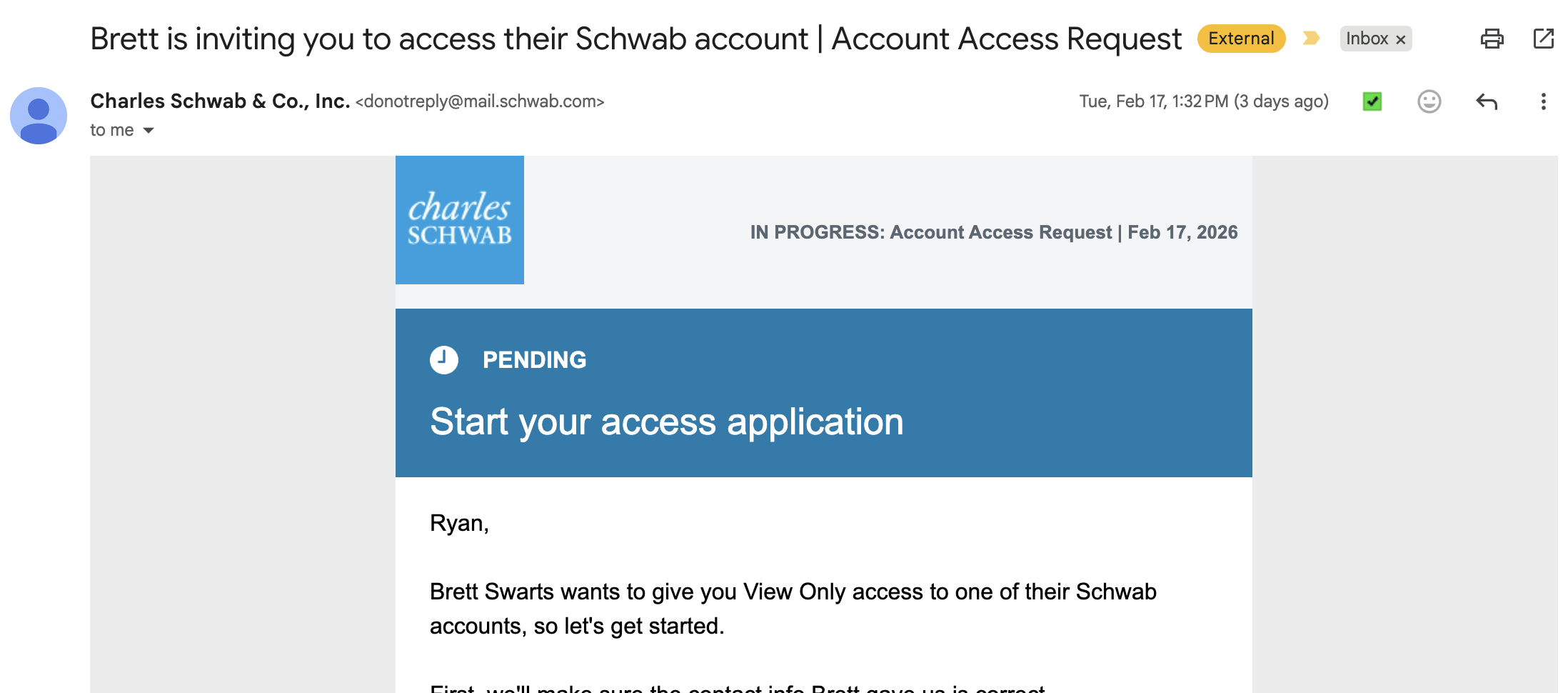
2. Click Proceed and fill in Relevant Information
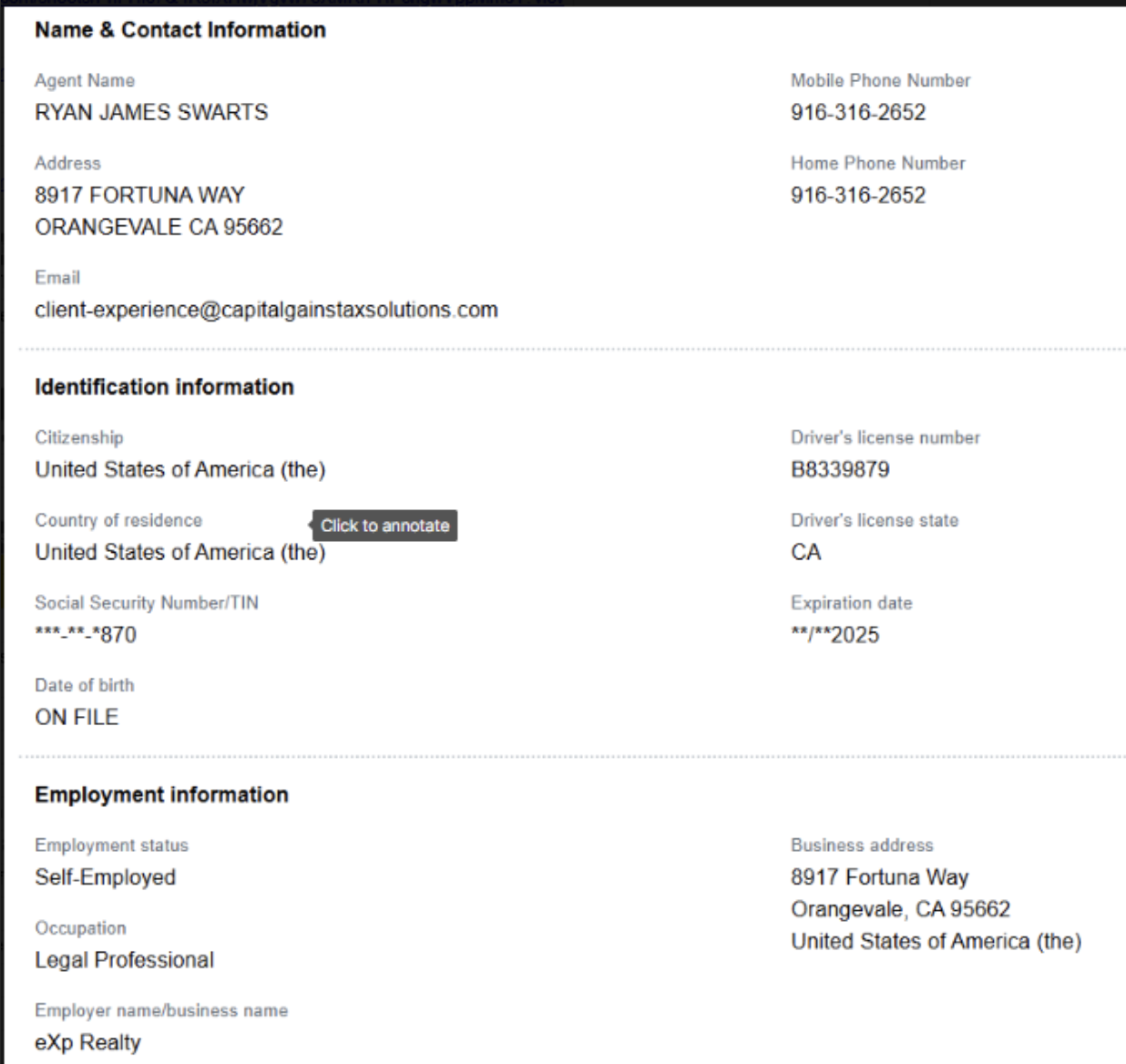
3. Account should populate in one of the profiles below: dfd
Profile 1: CGTSclientexperience
Profile 2: CGTSclientexp1
Profile 2: CGTSclientexp2
4. If trust account does not populate call in to speak with Rep and explain the following:
- They will ask for passphrase to validate confirm identity
- Give profile login for them to pull up account
- Give account number that we are attempting to add
- Give date of last request (look up email)
- Let them know in the past the Account Solutions Team Specialist team will have to add it on teh back end and it may be due to maxing out of accounts on a profile?
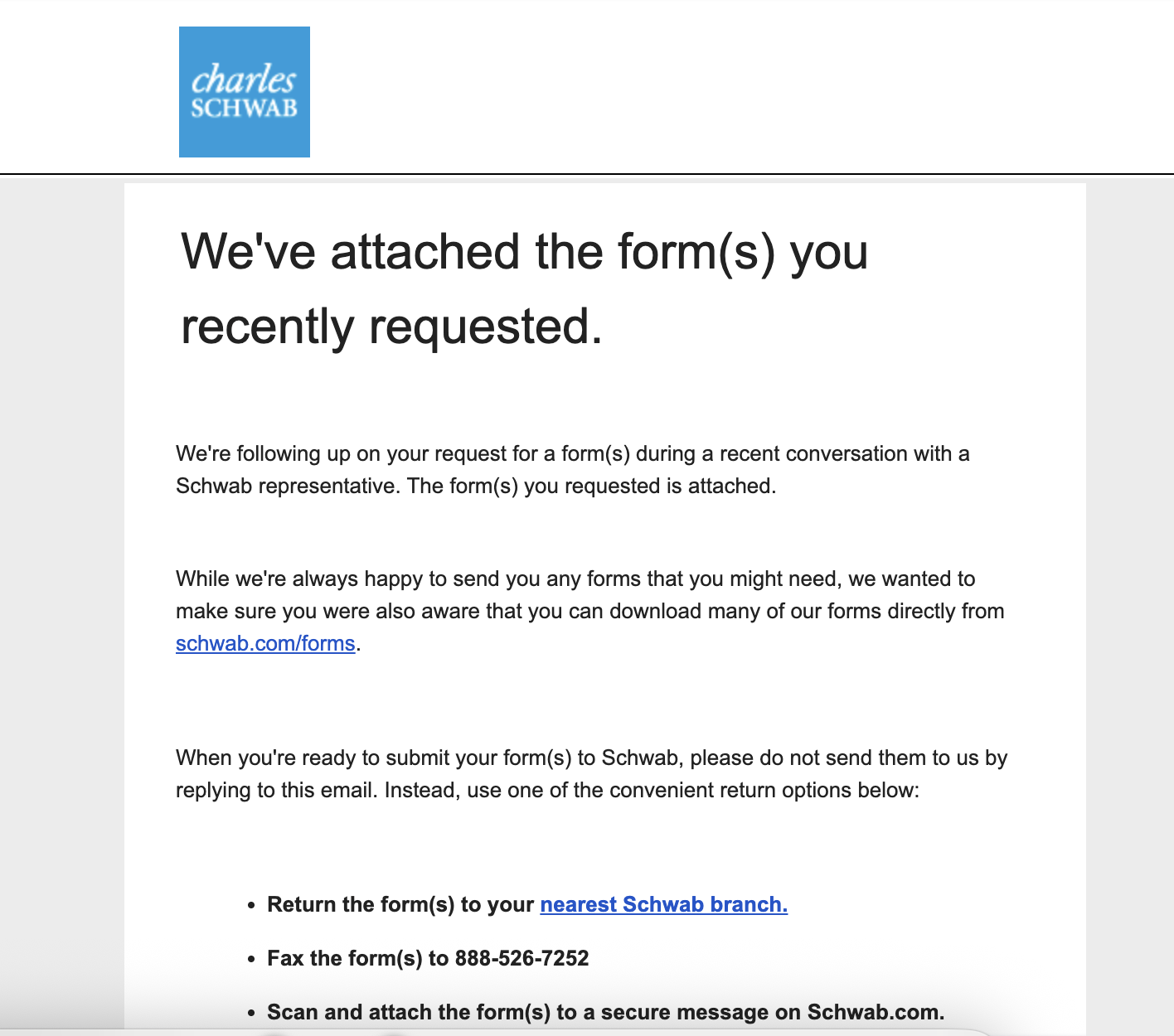
5. At this time they say I have to do paper version due to a technical issues.
- Attached is the form
- The said to use this number for Authorized Viewer's Account #: 0985855946
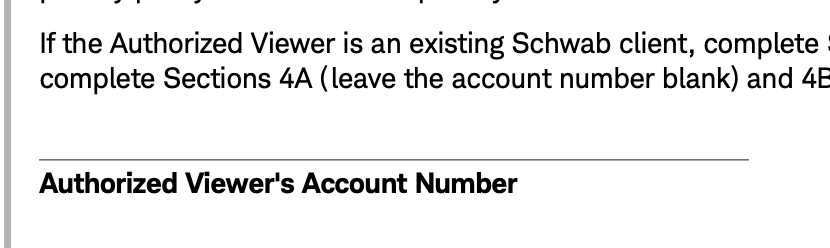
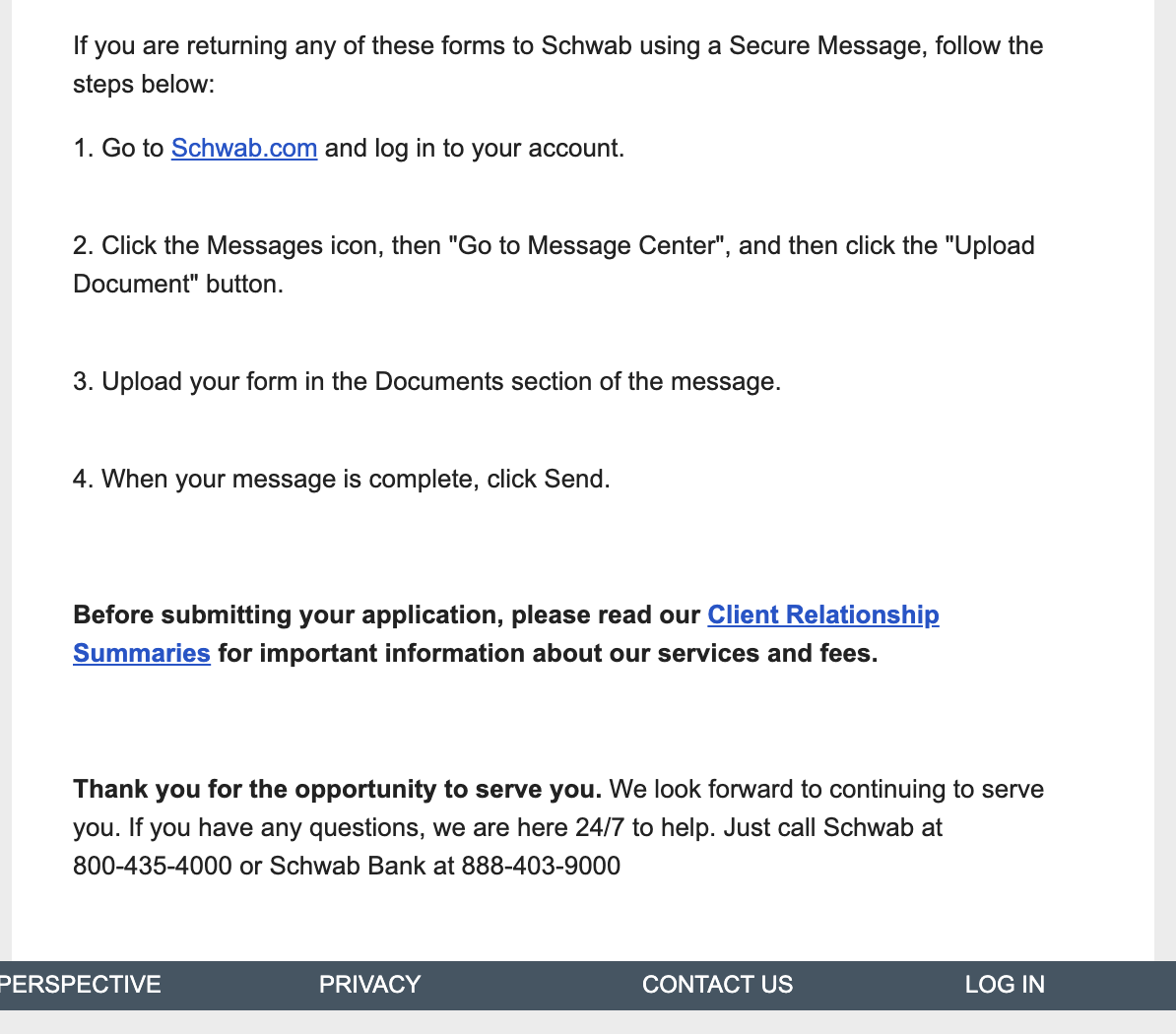
- Below is the screen shot to turn in the form.
6. Questions to ask to speed up process:
- Can this be done via chat when I log in to my profile in the future?
Paper Application
SOP for Adding View Access via Paper Application
Objective
This SOP outlines the steps to add view access for a new form and ensure proper documentation is completed.
https://www.loom.com/share/febf8061f6014e1ebae838eeec4f53b6
Key Steps
1. Add New Form to Repository 0:00
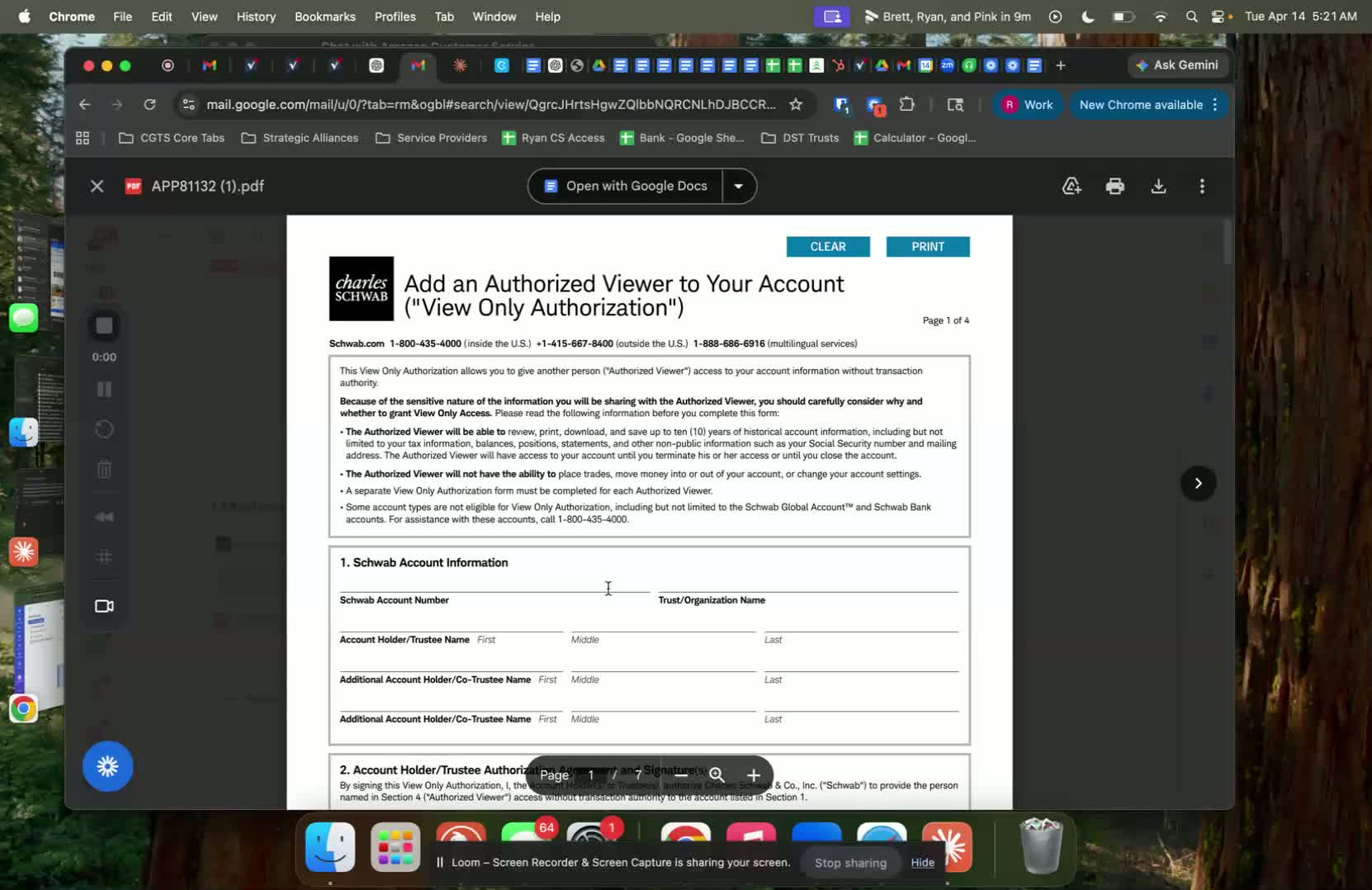
Locate the repository where forms are stored.
Add the new form that has not been used yet.
2. Input Full Account Number 0:12
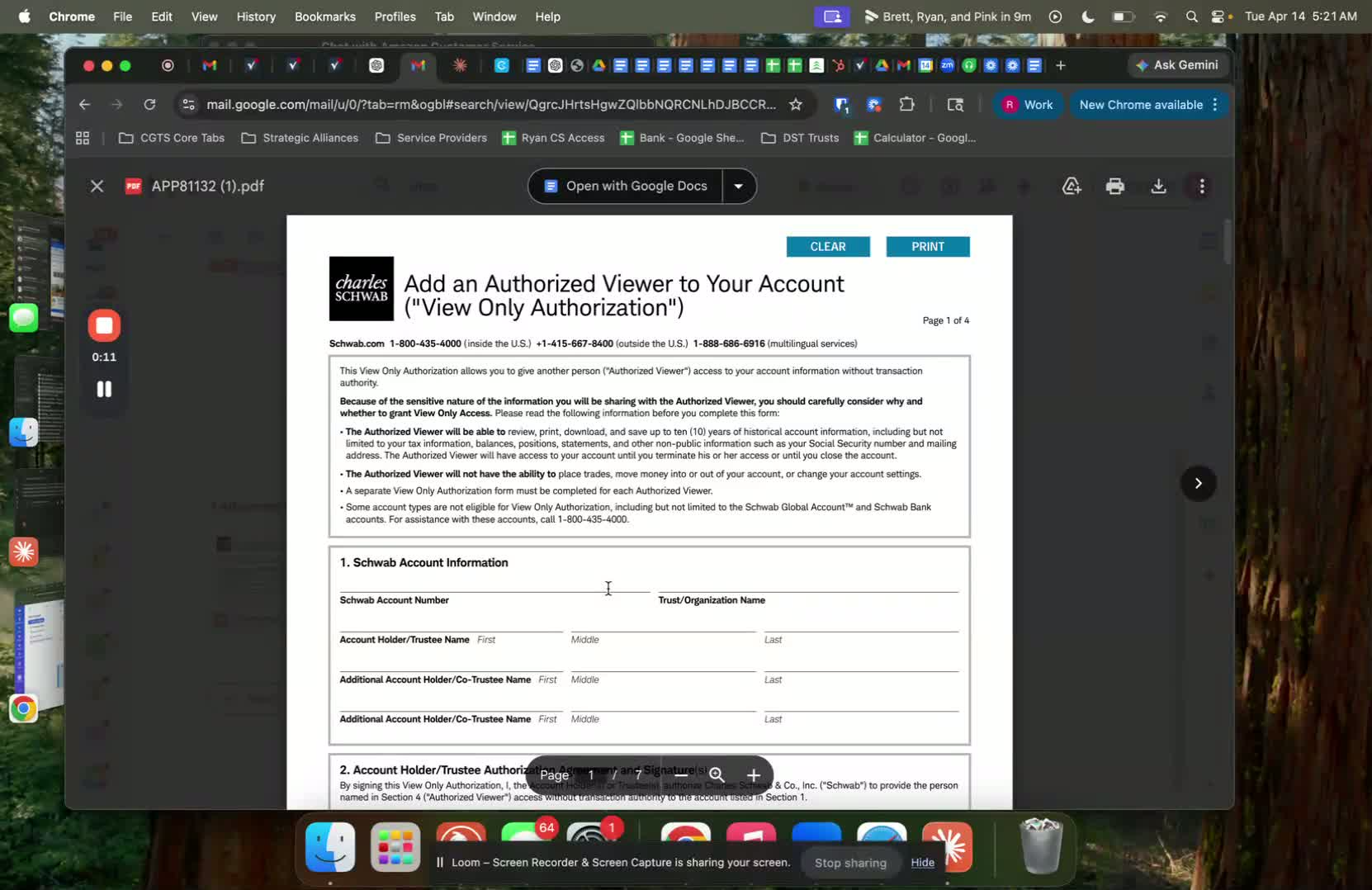
When the online version does not work, input the full account number.
Ensure it matches the ACH instructions format.
3. Enter Trust Name and Signatory 0:34
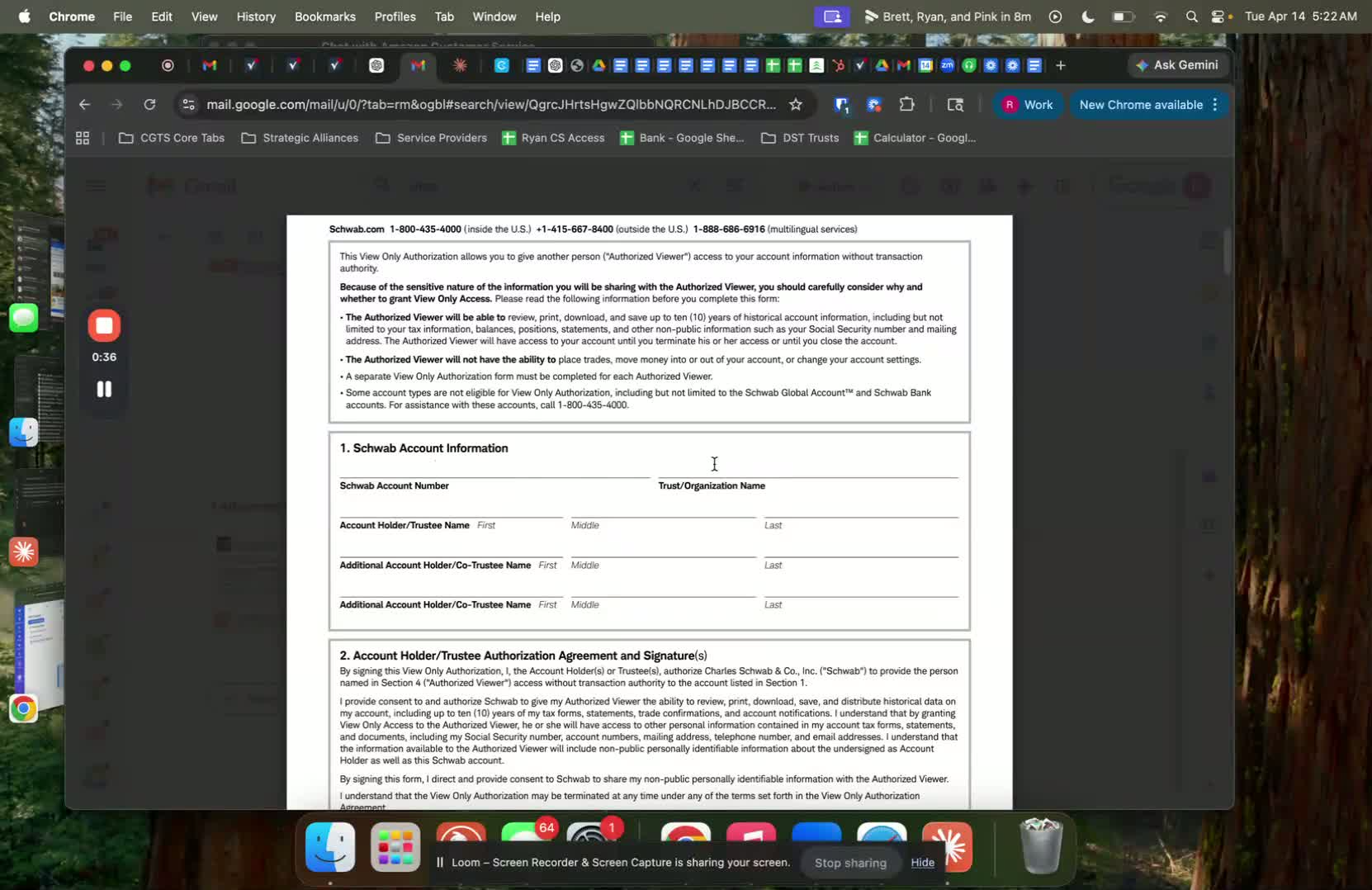
Input the trust name (not Capital Gains Tax Solutions).
Enter the name of the signatory: Brett Paul Swartz.
4. Skip Existing Client Section 0:54
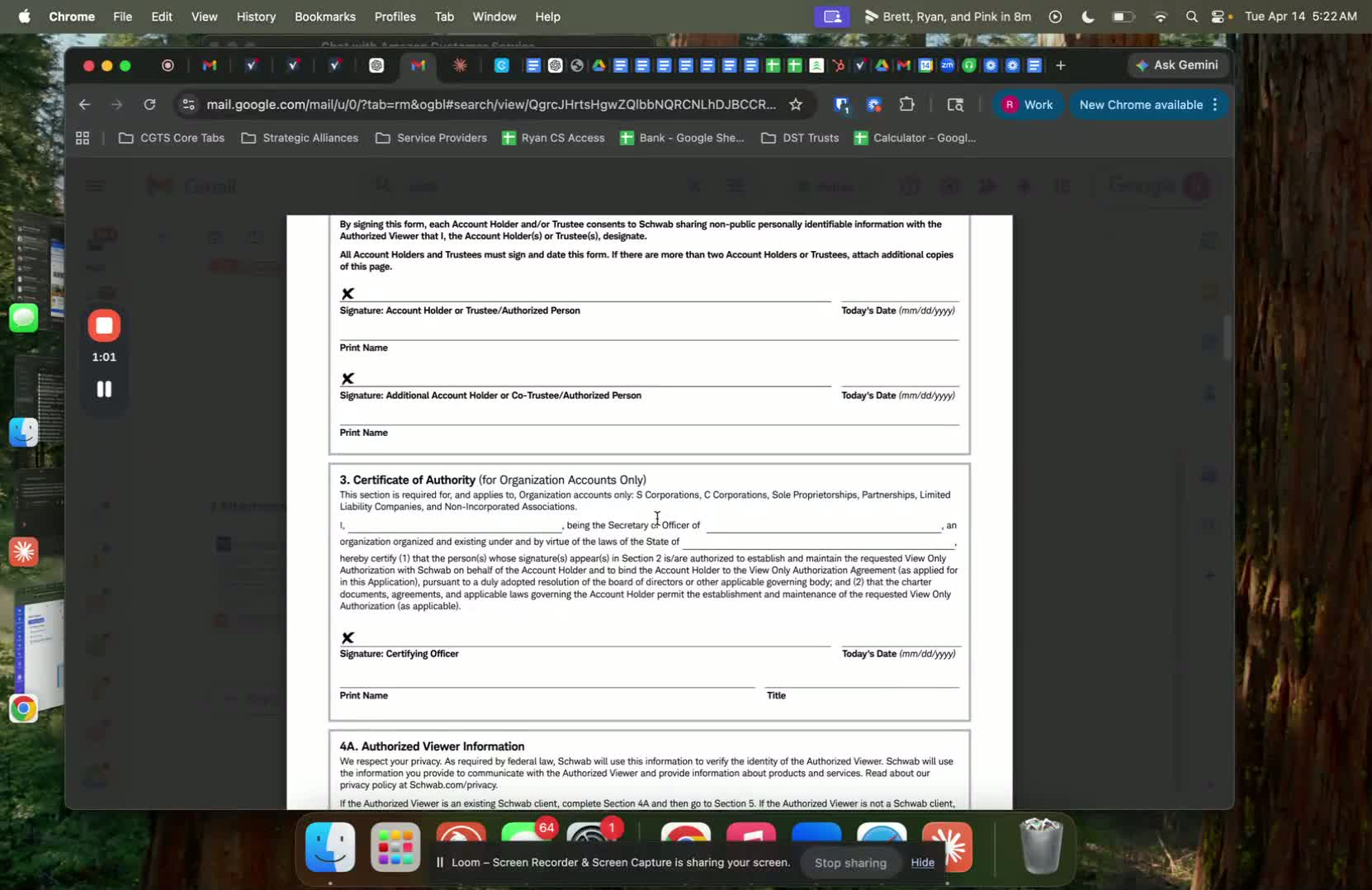
Skip the section for existing clients.
5. Fill in Personal Information 1:11
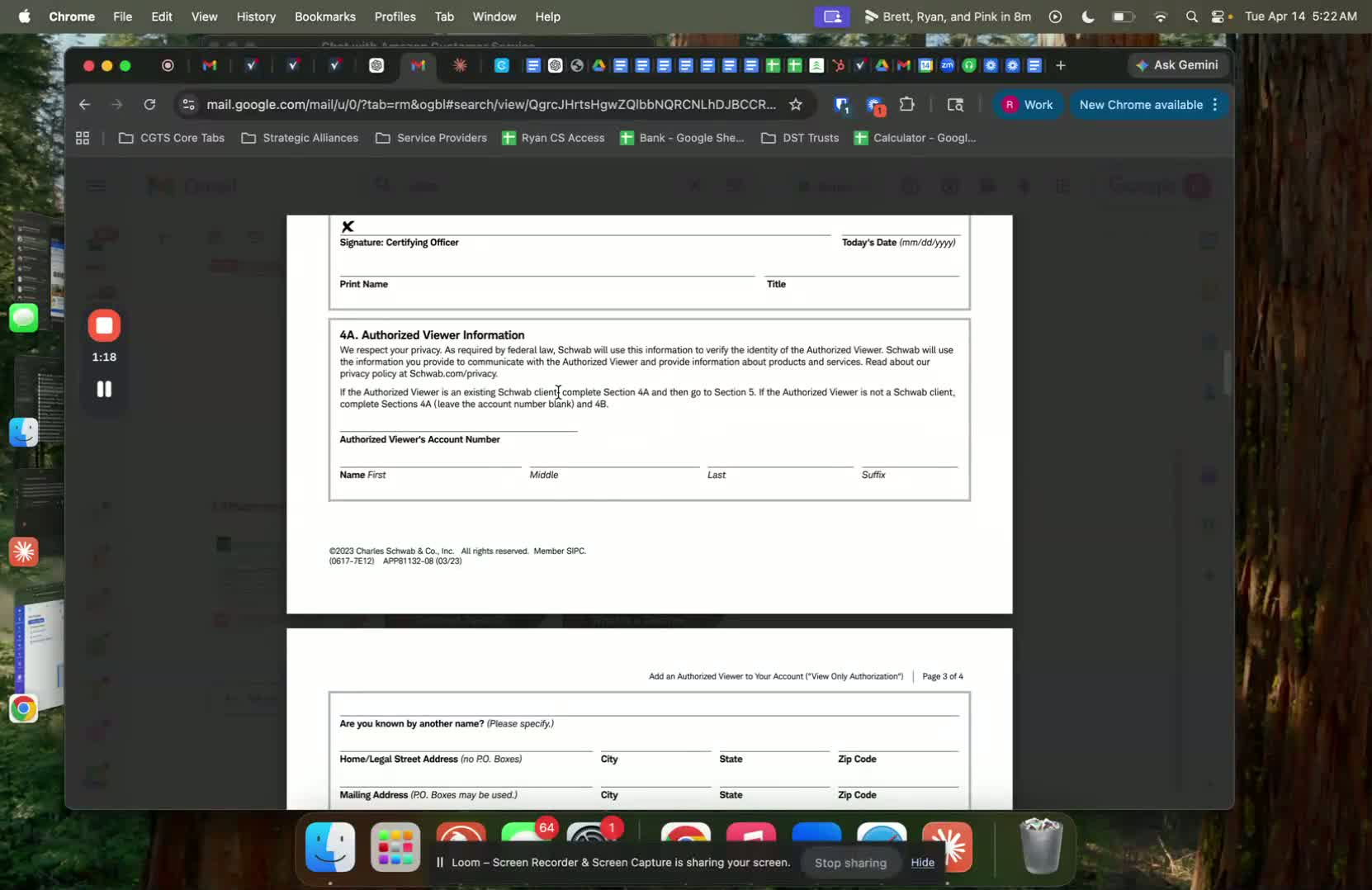
Input the following details:
Date of birth: 0523-1989
Last name: SWARTZ
Country: USA
Driver's License: Check.
6. Enter Driver's License Information 1:41
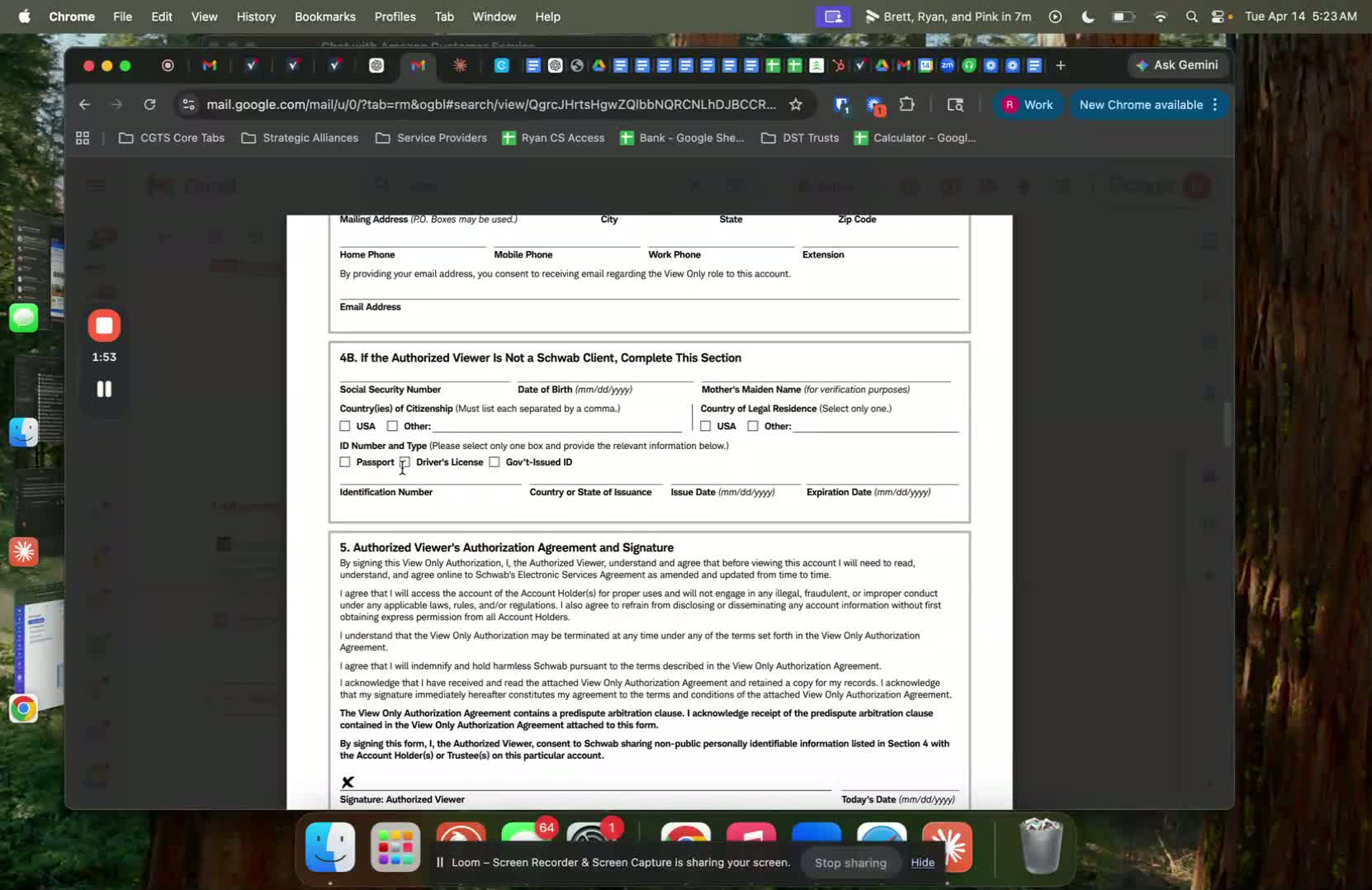
Input the driver's license number: B833-9879.
Specify the country or state of issue: California.
7. Fill Issue and Expiration Dates 1:57
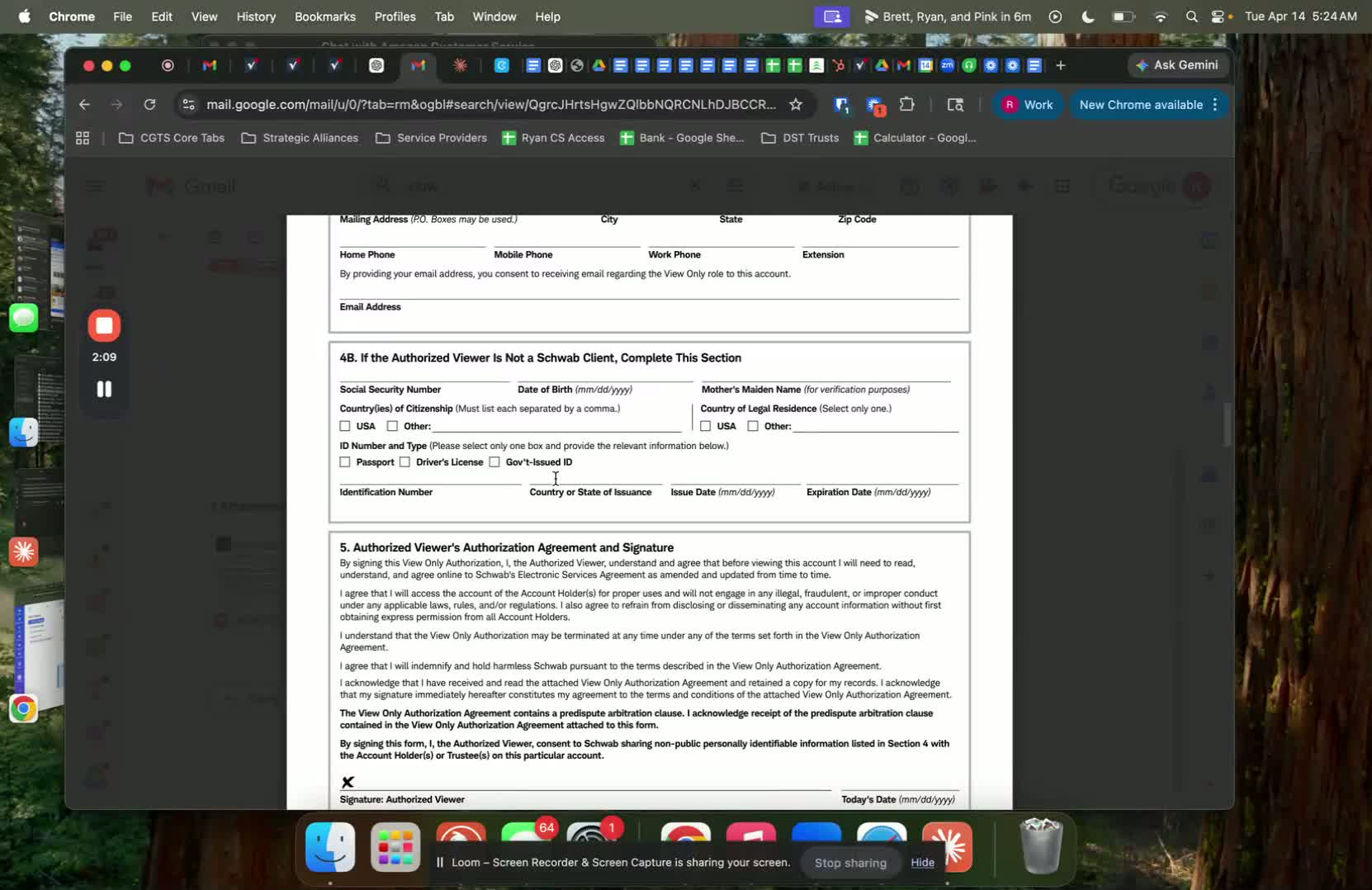
Enter the issue date: 04-05-2025.
Enter the expiration date: 05-03-2025.
8. Complete Social Security Section 2:08
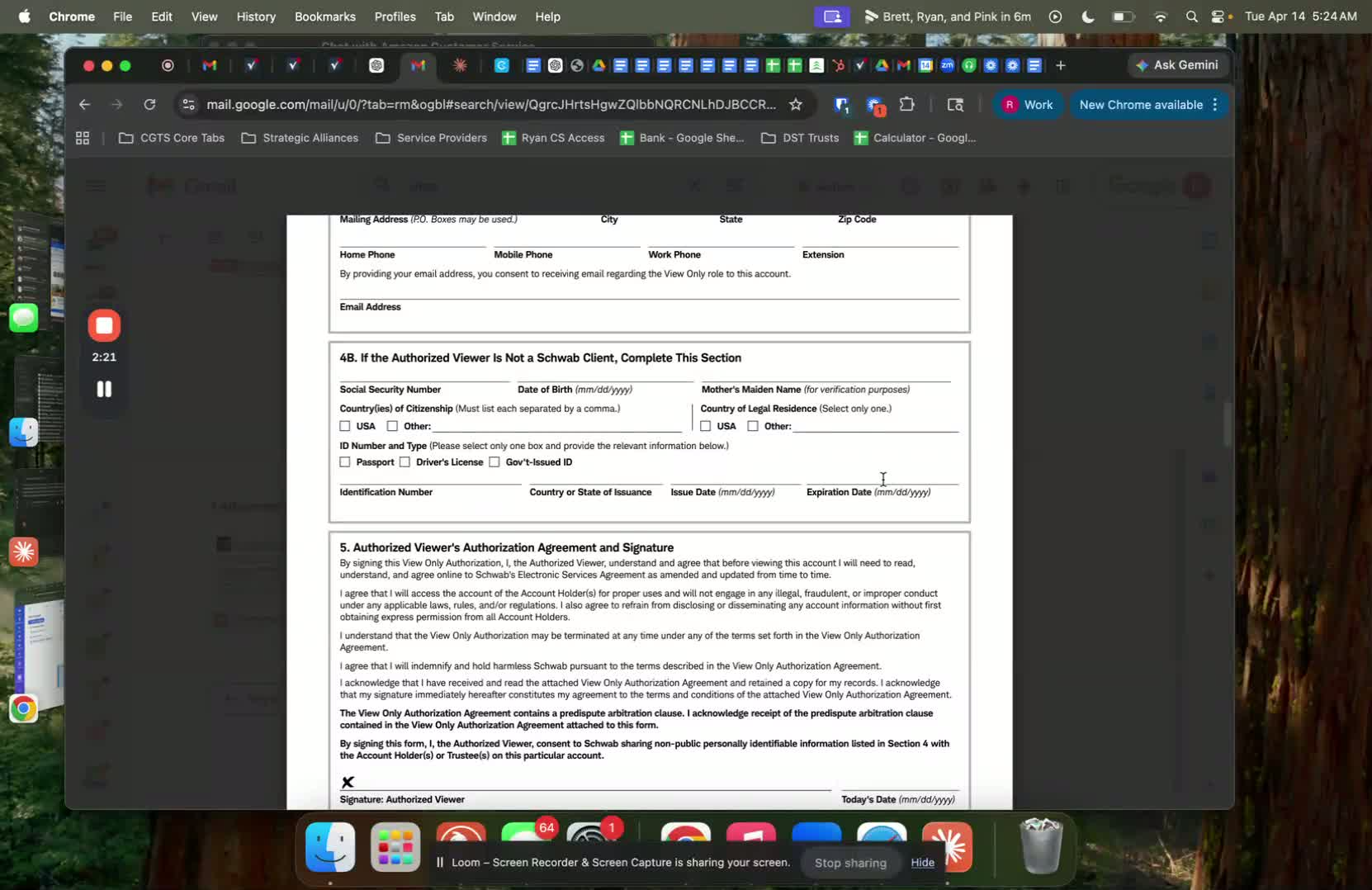
Fill in the Social Security number before finalizing the document.
9. Obtain Signature and Upload 2:33
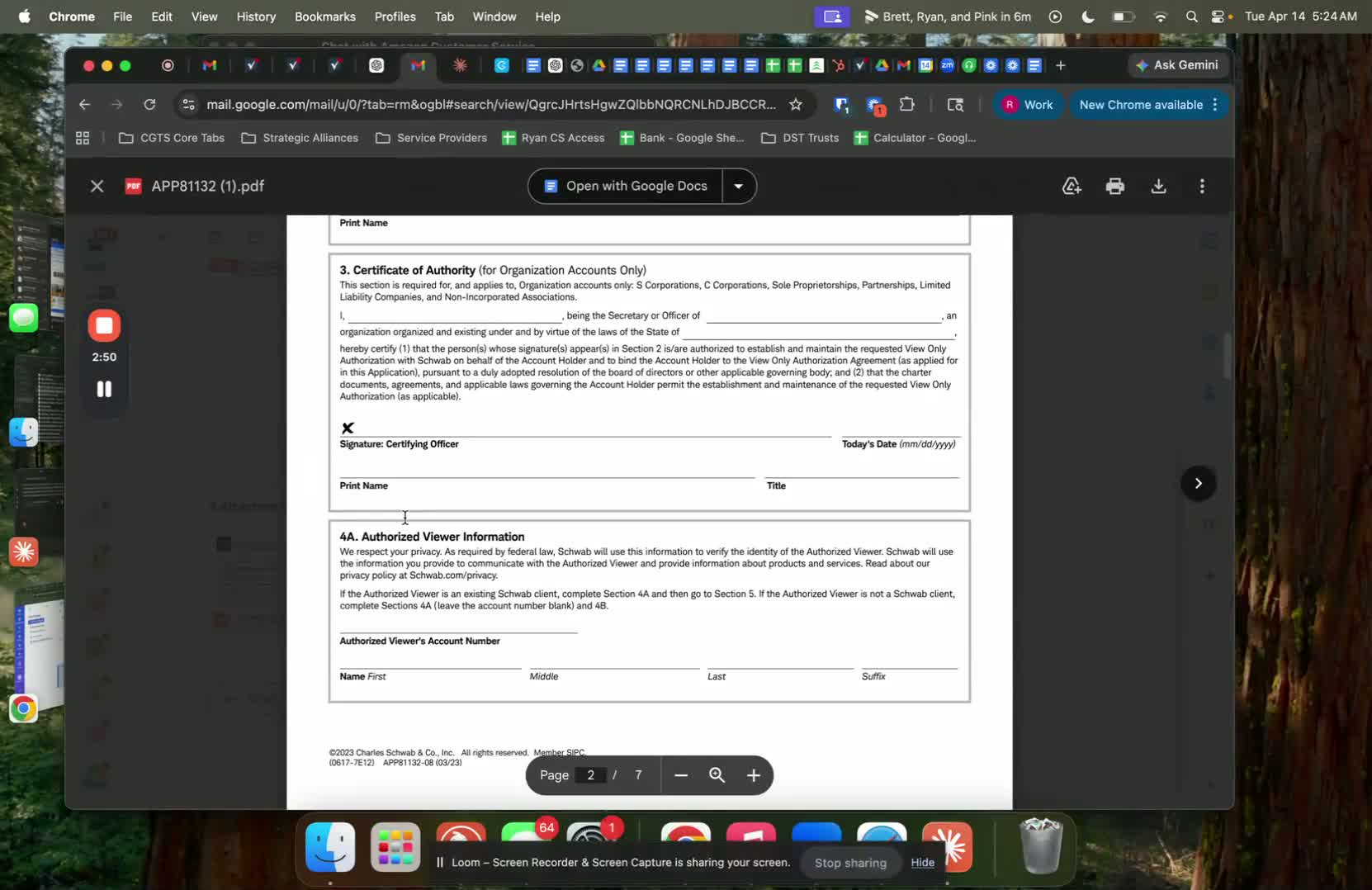
Ensure Brett signs the document.
Pink will upload the completed document.
Cautionary Notes
Double-check all entries for accuracy before submission.
Ensure that the correct trust name is used to avoid legal issues.
Tips for Efficiency
Use templates for forms to save time on future entries.
Keep a checklist of required information to streamline the process.
Link to Loom
https://loom.com/share/febf8061f6014e1ebae838eeec4f53b6
Was this article helpful?
That’s Great!
Thank you for your feedback
Sorry! We couldn't be helpful
Thank you for your feedback
Feedback sent
We appreciate your effort and will try to fix the article